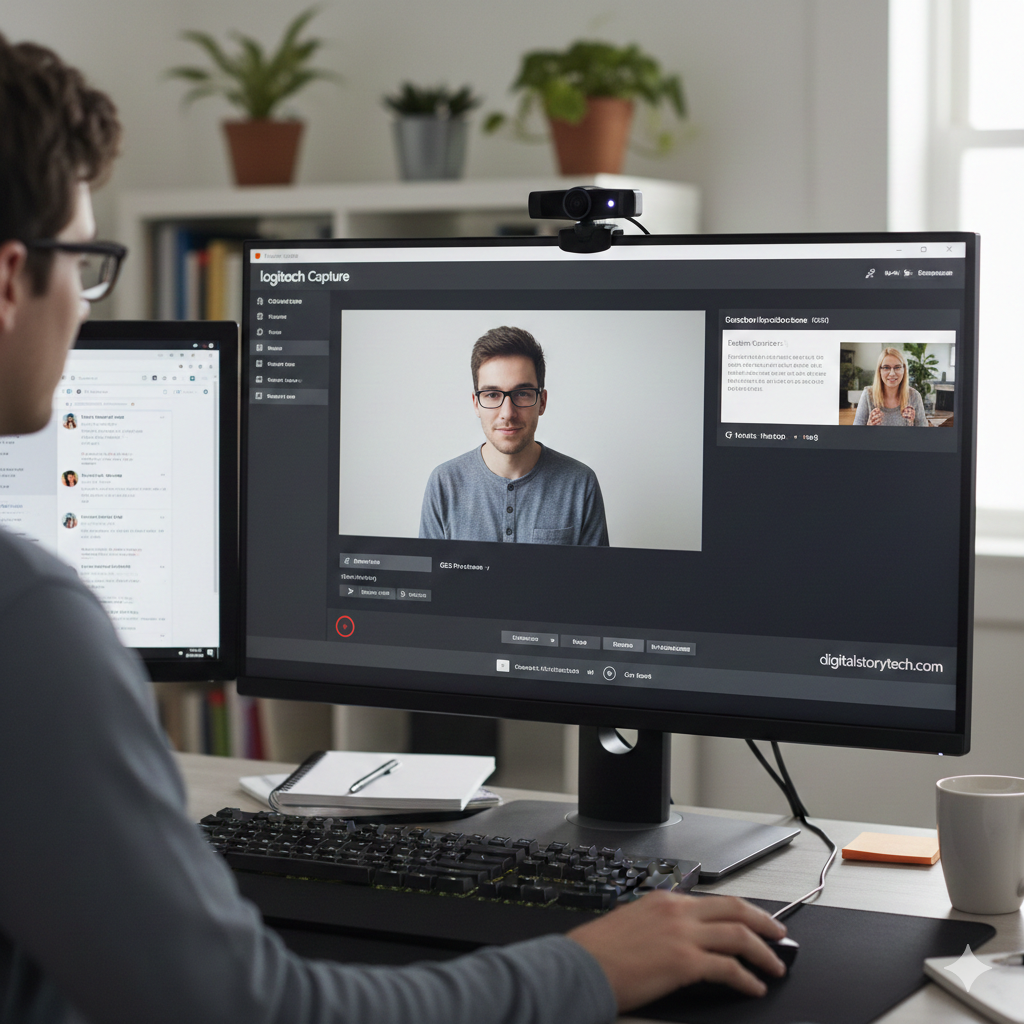
Have you ever recorded a video with your webcam and felt disappointed by the grainy image, terrible audio, or awkward framing? You are not alone. Most built-in webcam software is incredibly basic, leaving you with a final product that does not reflect the quality of your ideas. But what if you had a powerful, free tool designed specifically to unlock the full potential of your hardware? Enter Logitech Capture. This dedicated software is a game-changer for anyone with a compatible Logitech webcam, transforming simple video recording into a professional and creative process. Whether you are a budding YouTuber, a business professional hosting client meetings, a teacher creating online lessons, or a streamer connecting with an audience, understanding this software can elevate your video presence dramatically. This guide will walk you through everything you need to know about Logitech Capture, from its core features to advanced techniques that will make your videos stand out. Let us dive in and discover how you can stop struggling with mediocre video and start creating content you are proud to share.
What Exactly is Logitech Capture?
Logitech Capture is a free, feature-rich video recording and streaming application developed by Logitech for its range of high-definition webcams. Think of it as the secret weapon that comes with your camera. While your computer’s default camera app might let you record a simple video, Logitech Capture gives you a full suite of production tools. It is designed to be intuitive enough for beginners but powerful enough for experienced creators who need more control. The software acts as a direct link to your webcam’s hardware, allowing you to manipulate settings that are usually locked away. It is not just a recording button; it is a control center. With it, you can manage everything from resolution and frame rate to color saturation and focus mode. It also supports picture-in-picture and side-by-side recording, letting you combine your webcam feed with a screen share or a second camera angle. This makes it incredibly versatile for tutorials, presentations, and creative content. In essence, Logitech Capture bridges the gap between a simple plug-and-play webcam and a professional video production setup, all without costing you a single extra dollar.
Why Do You Need Specialized Software Like Logitech Capture?
You might be wondering why you cannot just use the camera app that came with your Windows or Mac computer. The answer lies in control and quality. Built-in camera applications are designed to be one-size-fits-all, working with any webcam you plug in. Because of this, they cannot access the unique features and advanced sensors of specific hardware. Logitech Capture is built from the ground up for Logitech cameras. This means it can tap directly into the camera’s capabilities, offering you a level of customization that generic software can only dream of. For instance, are you tired of your face being too dark when you sit in front of a window? With generic software, you are out of luck. With Logitech Capture, you can manually adjust the exposure or use the “RightLight” feature to automatically balance the light and make you look clear and visible. Furthermore, specialized software provides a consistent experience. If you are recording a multi-part video course or a regular live stream, you need your lighting and color to look the same in every episode. Logitech Capture lets you save your custom settings as presets, ensuring a professional, consistent look every time you hit record. It is the difference between taking a photo with a basic camera phone and taking one with a DSLR where you can adjust the aperture and shutter speed.
Key Features That Make Logitech Capture Shine
Logitech Capture is packed with features that cater to a wide range of users. It is not just a single tool but a whole toolbox designed to solve common video creation problems. By understanding these core features, you can start to plan more dynamic and engaging videos. The interface is clean and divided into logical sections, making it easy to find what you need without getting overwhelmed. You have your main preview window, quick access to recording and streaming, and tabs for adjusting your video and audio settings. Let us break down the most impactful features that you will be using regularly to create better content, whether you are filming a product review or preparing for a virtual presentation.
Customizable Video Quality and Resolution
One of the first things you will notice in Logitech Capture is the direct control you have over your video’s visual fidelity. You are not stuck with a default resolution. The software allows you to select the exact resolution and frame rate you want to record in. For crisp, clear video that looks great on modern monitors and TVs, you can select 1080p at 60 frames per second (fps) for smooth motion, or even 4K on supported models for stunning detail. This is crucial because a higher resolution means your viewers can full-screen your video without it looking pixelated. The frame rate is equally important; 30fps is standard, but 60fps provides exceptionally smooth movement, which is perfect for gaming streams or fast-paced tutorials. Having this level of control ensures that you are always outputting the highest quality video that your hardware and storage space can support.
Professional-Grade Controls: Exposure, Focus, and White Balance
This is where Logitech Capture truly separates itself from basic software. Under the “Video Settings” tab, you gain manual control over three critical aspects of photography: exposure, focus, and white balance. Exposure controls how light or dark your image is. If you are in a dimly lit room, you can increase the exposure to brighten the image without making it look washed out. Focus can be set to auto, which is handy if you move around a lot, or you can switch to manual focus to lock onto your face, ensuring the camera does not randomly decide to focus on your background instead. White balance is perhaps the most important for making you look natural. Incorrect white balance can make your video look too blue (cool) or too yellow (warm). By manually setting it, or using a white piece of paper to calibrate it, you can ensure the colors in your video are accurate and true to life, making your content look more professional and pleasing to the eye.
The Power of Digital Zoom and Panning
A static webcam shot can sometimes feel a bit lifeless. Logitech Capture solves this with its digital zoom and panning features. While your webcam is physically fixed, the software allows you to digitally zoom in on a specific area of the frame. This is perfect for emphasizing a product you are showing, highlighting an expression on your face, or creating a more intimate feel. Even more impressive is the ability to set a starting and ending frame for a smooth, automated panning shot. You can program the camera to slowly drift from one side of the scene to the other, adding a cinematic touch to your videos without any extra equipment. It is a simple feature that adds a tremendous amount of production value and keeps the viewer’s eye engaged. It is the kind of subtle technique that professional videographers use, and now you can do it with a single click in your webcam software.
Multi-Source Recording: Picture-in-Picture and Side-by-Side
For creators who need to show more than one thing at a time, the multi-source recording feature is a lifesaver. Logitech Capture lets you combine two video sources seamlessly. You can choose between Picture-in-Picture (PiP), where a small video of you appears over your main content, or Side-by-Side, where both video feeds share the screen equally. This is incredibly useful for a variety of scenarios. For example, a teacher can show their face in a corner while the main screen displays a slideshow. A tech reviewer can have a shot of themselves on one side and a close-up of a smartphone they are reviewing on the other. The software makes it easy to position the secondary source, resize it, and choose which source is the primary one. This functionality eliminates the need for complex video editing later, as you are recording the final composed scene right from the start.
Getting Started: A Step-by-Step Setup Guide
Getting up and running with Logitech Capture is a straightforward process. The goal is to get you from unboxing your webcam to recording your first high-quality video as quickly as possible. You do not need any prior technical knowledge, as the software guides you through each step. The most important part of the setup is ensuring you have the right hardware and that your software is correctly installed. A proper setup now will save you from headaches later, especially when you are in the middle of an important recording or live stream. Let us walk through the initial process to ensure you have a solid foundation.
Compatibility and Download
Before you do anything else, you need to make sure your equipment is compatible. Logitech Capture is designed for specific Logitech webcams. The most popular compatible models include the Logitech Brio series, the C920 series, the C922 Pro Stream, the C930e, and the StreamCam, among others. You can find a full list on the official Logitech website. The software is available for both Windows and macOS. To download it, simply visit the Logitech software download page, find Logitech Capture, and select the version for your operating system. The download and installation are typically very fast. Once installed, it is a good idea to restart your computer to ensure the software integrates properly with your system. Then, connect your compatible Logitech webcam to a USB port directly on your computer, avoiding USB hubs for the best performance and stability.
Initial Configuration and Preferences
When you open Logitech Capture for the first time, it should automatically detect your connected webcam. The first thing you will see is the live preview from your camera. Before you start recording, take a few minutes to configure the preferences. Click on the settings gear icon, usually located in the top right corner of the application. Here, you can set your preferred language and, most importantly, choose where your recorded videos will be saved. It is best to select a folder on a drive with plenty of free space, as high-resolution video files can be very large. You can also choose the format of your recordings; MP4 is the standard and most compatible format for sharing online. Taking these initial steps ensures that your files are organized and easy to find after a long recording session, saving you time and frustration.
Optimizing Your Recordings for Different Scenarios
Logitech Capture is a versatile tool, but the best settings for a corporate webinar are different from those for a creative vlog. Knowing how to tweak the software for your specific needs will dramatically improve your results. Think about your audience and the platform where your video will live. A video for YouTube has different requirements than one for a private client presentation. By creating and saving custom profiles for each scenario, you can switch between professional setups in an instant. This level of preparation makes you look polished and reliable.
Perfect for Professional Presentations and Meetings
In a business setting, clarity and professionalism are key. You want to appear crisp, well-lit, and distraction-free. For this scenario, set your resolution to 1080p at 30fps. This provides excellent clarity without creating unnecessarily large files. Enable “RightLight” to ensure your face is evenly lit, even under challenging office lighting. Set your white balance manually to avoid any strange color casts that might make you look sickly. Use a neutral background or a subtle virtual background if your software supports it. In this context, features like digital zoom and panning are less important than a stable, clean shot. The goal is to ensure the focus remains on you and your message, not on your video quality. A well-produced video call can significantly enhance your professional credibility.
Ideal for Content Creators and Streamers
For streamers and YouTubers, personality and engagement are the driving forces. This is where you can have fun with all of Logitech Capture’s features. Use 1080p at 60fps for buttery-smooth motion, especially if you are streaming fast-paced games. The picture-in-picture feature is essential here, allowing your audience to see your reactions while you play. Do not be afraid to use digital zoom for dramatic effect or to highlight a new product, like showing off the intricate details of a Night in Tokyo lace dress burgundy you are reviewing for a fashion haul. You can create a more dynamic stream by setting up a custom scene where your camera feed is in a stylishly designed frame. The key is to experiment with the tools at your disposal to create a unique and engaging viewer experience that keeps people coming back.
Logitech Capture vs. The Competition
How does Logitech Capture stack up against other popular broadcasting software? It is a common question, especially for those who are diving into content creation. The most direct comparisons are with free giants like OBS Studio. The right choice depends entirely on your needs, skill level, and what you are trying to accomplish. The table below provides a clear, side-by-side comparison to help you understand the strengths and focus of each application.
| Feature | Logitech Capture | OBS Studio |
|---|---|---|
| Primary Focus | Easy recording & streaming for Logitech webcams | Advanced, customizable broadcasting & streaming |
| Ease of Use | Very user-friendly, intuitive interface | Steeper learning curve, requires configuration |
| Automated Features | Excellent (e.g., RightLight, auto-framing) | Mostly manual control |
| Multi-Source | Limited to two camera/screen sources | Virtually unlimited sources (browser, game, media, etc.) |
| Platform Support | Windows, macOS | Windows, macOS, Linux |
| Webcam Control | Deep, native control for Logitech cameras | Basic control through standard drivers |
| Best For | Beginners, professionals, quick & easy setups | Advanced users, streamers, full production control |
As you can see, Logitech Capture excels in simplicity and leveraging the full power of your Logitech hardware with minimal effort. OBS Studio is a powerhouse of customization but requires time and patience to master. For many users, starting with Logitech Capture and then graduating to OBS as their needs grow is a perfect pathway.
Troubleshooting Common Issues
Even the best software can have occasional hiccups. Most problems with Logitech Capture are easy to fix with a few basic checks. If your camera is not being detected, first ensure it is plugged directly into a USB port on your computer, not a hub. Try a different USB cable or port. If the video quality is poor or choppy, check that no other applications are using the camera at the same time. Close programs like Zoom, Skype, or your default camera app. Also, verify you have selected the correct resolution and that your computer meets the system requirements for that resolution. For audio issues, make sure the correct microphone is selected within Logitech Capture’s audio settings and that it is not muted in Windows or macOS system settings. A simple restart of the software or your computer can also resolve many temporary glitches.
Key Takeaways for Mastering Logitech Capture
-
Logitech Capture is a free, powerful software that unlocks the full potential of your compatible Logitech webcam.
-
It provides manual control over professional settings like exposure, focus, and white balance, which are essential for high-quality video.
-
Features like digital zoom, panning, and multi-source recording (PiP and Side-by-Side) add significant production value with ease.
-
The software is perfect for quick, professional setups for business meetings, as well as for more creative content for streaming and YouTube.
-
It is designed for ease of use, making advanced video production accessible to users of all skill levels.
Frequently Asked Questions (FAQ)
Is Logitech Capture really free?
Yes, Logitech Capture is completely free to download and use. There are no subscriptions or hidden fees. It is a value-added software provided by Logitech for owners of their compatible webcams.
Can I use Logitech Capture with a non-Logitech webcam?
No, the software is specifically designed to work with a select list of Logitech webcams. It uses proprietary technology to communicate with the camera’s hardware, so it will not recognize webcams from other manufacturers.
Can I live stream directly to platforms like YouTube with Logitech Capture?
Yes, you can. Logitech Capture has a built-in “Stream” function that allows you to broadcast directly to platforms like YouTube and Facebook Live by entering your stream key. However, for more advanced streaming with overlays and multiple sources, you might eventually want to use software like OBS, which you can learn more about on resources like Digital Story Tech.
What is the best resolution to record in?
For most purposes, 1080p (Full HD) at 30fps is an excellent balance of quality and file size. If you have a 4K webcam and want the highest detail for editing or cropping, use 4K. For very smooth motion in gaming or action scenes, 1080p at 60fps is ideal.
My recordings are very large. How can I manage file sizes?
High-quality video naturally creates large files. You can manage this by choosing a slightly lower resolution (like 720p) if 1080p is not essential, or by recording for shorter segments. Investing in a large external hard drive is also a practical solution for storing your video projects.
Conclusion: Unleash Your Creative Potential
Logitech Capture is more than just software; it is an empowerment tool for anyone who uses a webcam. It demystifies the technical aspects of video production and puts a suite of powerful features right at your fingertips. By giving you control over the look and feel of your video, it allows your personality and message to shine through without being hampered by poor technical quality. From the business professional who needs to look sharp on a client call to the creative vlogger showcasing the elegant design of a Night in Tokyo lace dress burgundy, this software provides the foundation for professional-looking results. So, download Logitech Capture, connect your webcam, and start experimenting. You might be surprised at how quickly you can transform your video content from amateur to amazing.